How to Install Python?
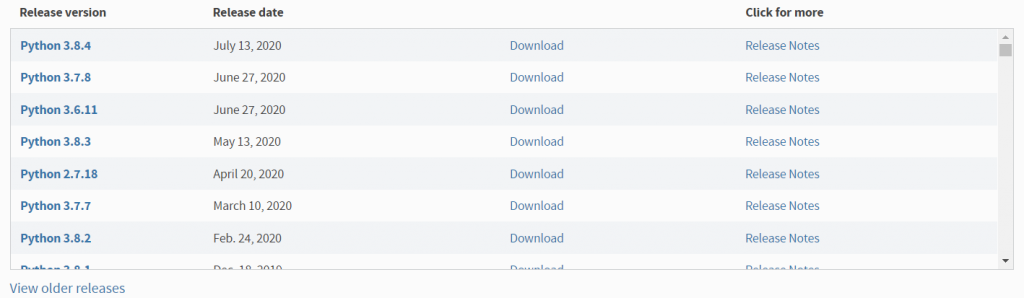
Visit to the link https://www.python.org/downloads/ according to your operating systems.
Installation on Windows
Here are the step by step instructions to install the python in your local machine.
- Visit the link https://www.python.org/downloads/ to download the latest release of Python for Windows.
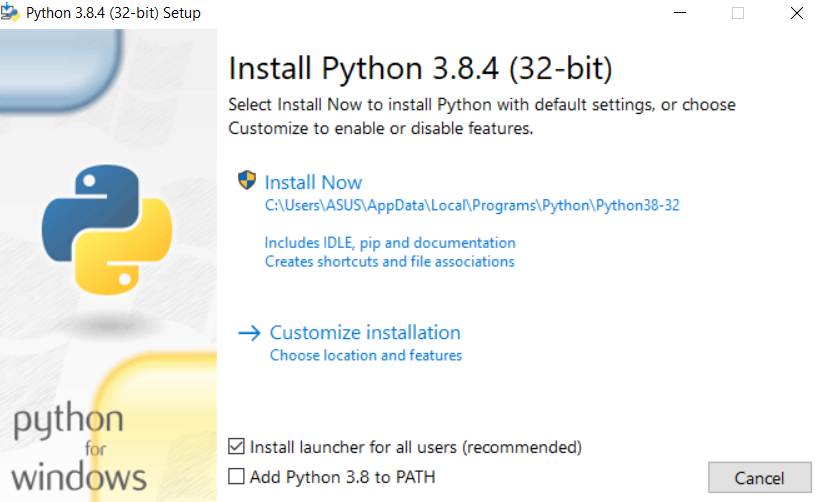
- Double-click the downloaded executable file, the following window will get open.
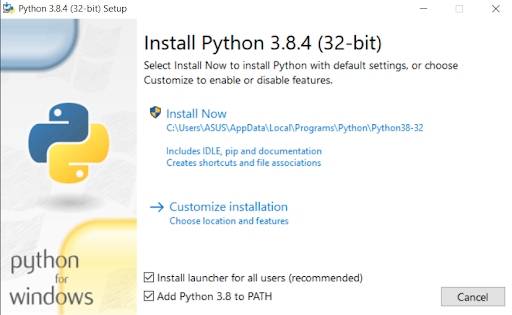
- Tick the Add Python 3.x to PATH at the bottom of the window; then select Install Now to proceed.
- Next window will be Optional Features. All the features need to be installed and are checked by default. Click Next to continue.
- Next window will be Advance Options. Check on all the options you want to install and along with Customize install location. Click Next to continue.
- Finally we are ready for installation. Setup will get installed within a few minutes.
Run Python on Command Prompt
Open windows Command Prompt.
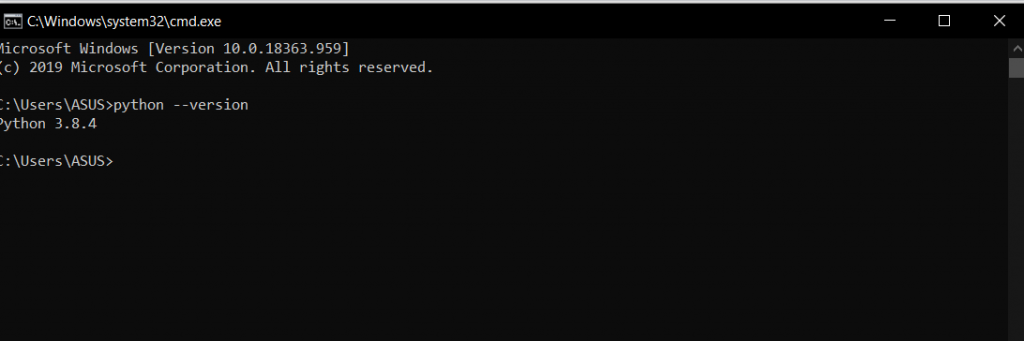
- To check the Python installed version, give below command
- To open Interactive Python Console, give below command
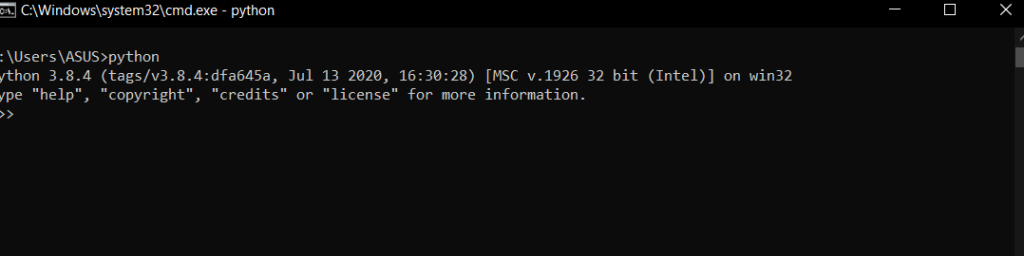
Python Interactive Console : Python Interpreter
- The Interactive Console (Python shell) offers the opportunity to explore Python.
- On Python Shell programmers can quickly execute commands and try out or test code without creating a file.
- Python Shell provides access to all of Python’s built-in functions and standard modules as well as to other installed modules i.e, within interactive python session, we can enter fragments of Python programs and see instant results.
Python 3.8.4 (tags/v3.8.2:7b359, Feb 25 2020, 23:03:10) [MSC v.1916 64 bit (AMD64)] on win32

>>>
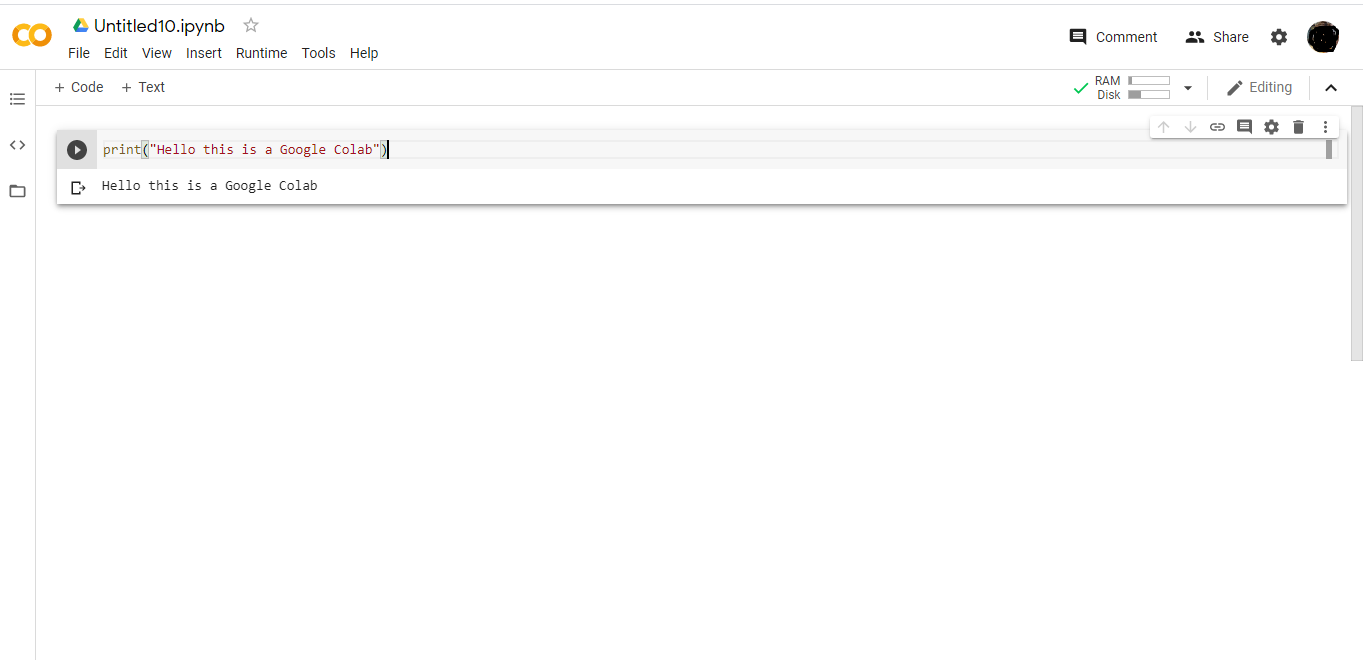
Google Colaboratory
It is also known as Google Colab It is the project of Google ,Basically it’s widely used Data Science ,Machine Learning and Deep Learning. It is a free Jupyter Notebook. it is based upon cloud base service. It is online platram so that’s why there are no needed to setup the Google Colab.