Flutter Charts
A chart is a graphical representation of data where data is represented by a symbol such as a line, bar, pie, etc. In Flutter we can add the fl_chart package.
Supported Chart Types in Flutter
fl_chart supports mainly three types of charts, and each chart comes with their own configuration options:
- Line Chart
- Bar Chart
- Pie and Donut Chart
Line Chart
A line chart is a graph that helps us create lines by connecting two coordinates.
We can use it as below:
LineChart(
  LineChartData(
    // write your logic
  ),
);
Bar Chart
It is a graph that shows data using rectangular bars. These bars can be horizontal or vertical.
We can use it as below:
BarChart(
  BarChartData(
    // write your logic
  ),
);
Pie or Donut Chart
It is a graph that is used to display the information in a circular graph.
We can use it as below:
PieChart(
  PieChartData(
    // write your logic
  ),
);
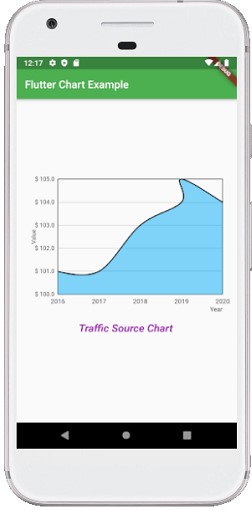
Let us understand it with the help of an example.
Example
Add the fl_chart in the package.yaml file
dependencies:
  flutter:
    sdk: flutter
  fl_chart: ^0.10.1
After adding the dependency, click on the get packages link shown on the screen’s top left corner:
import 'package:flutter/material.dart';
import 'package:fl_chart/fl_chart.dart';

void main() => runApp(MyApp());

/// This Widget is the main application widget.
class MyApp extends StatelessWidget {
  @override
  Widget build(BuildContext context) {
    return MaterialApp(
      home: HomePage(),
    );
  }
}

class HomePage extends StatelessWidget {
  @override
  Widget build(BuildContext context) {
    return Scaffold(
      appBar: AppBar(
        title: const Text('Flutter Chart Example'),
          backgroundColor: Colors.green
      ),
      body: Center(
        child: Column(
          mainAxisAlignment: MainAxisAlignment.center,
          children: [
            LineCharts(),
            Padding(
              padding: const EdgeInsets.all(16.0),
              child: Text(
                "Traffic Source Chart",
                  style: TextStyle(
                      fontSize: 20,
                      color: Colors.purple,
                      fontWeight: FontWeight.w700,
                      fontStyle: FontStyle.italic
                  )
              )
            ),
          ],
        ),
      ),
    );
  }
}

class LineCharts extends StatelessWidget {
  @override
  Widget build(BuildContext context) {
    const cutOffYValue = 0.0;
    const yearTextStyle =
    TextStyle(fontSize: 12, color: Colors.black);

    return SizedBox(
      width: 360,
      height: 250,
      child: LineChart(
        LineChartData(
          lineTouchData: LineTouchData(enabled: false),
          lineBarsData: [
            LineChartBarData(
              spots: [
                FlSpot(0, 1),
                FlSpot(1, 1),
                FlSpot(2, 3),
                FlSpot(3, 4),
                FlSpot(3, 5),
                FlSpot(4, 4)
              ],
              isCurved: true,
              barWidth: 2,
              colors: [
                Colors.black,
              ],
              belowBarData: BarAreaData(
                show: true,
                colors: [Colors.lightBlue.withOpacity(0.5)],
                cutOffY: cutOffYValue,
                applyCutOffY: true,
              ),
              aboveBarData: BarAreaData(
                show: true,
                colors: [Colors.lightGreen.withOpacity(0.5)],
                cutOffY: cutOffYValue,
                applyCutOffY: true,
              ),
              dotData: FlDotData(
                show: false,
              ),
            ),
          ],
          minY: 0,
          titlesData: FlTitlesData(
            bottomTitles: SideTitles(
                showTitles: true,
                reservedSize: 5,
                textStyle: yearTextStyle,
                getTitles: (value) {
                  switch (value.toInt()) {
                    case 0:
                      return '2016';
                    case 1:
                      return '2017';
                    case 2:
                      return '2018';
                    case 3:
                      return '2019';
                    case 4:
                      return '2020';
                    default:
                      return '';
                  }
                }),
            leftTitles: SideTitles(
              showTitles: true,
              getTitles: (value) {
                return '\$ ${value + 100}';
              },
            ),
          ),
          axisTitleData: FlAxisTitleData(
              leftTitle: AxisTitle(showTitle: true, titleText: 'Value', margin: 10),
              bottomTitle: AxisTitle(
                  showTitle: true,
                  margin: 10,
                  titleText: 'Year',
                  textStyle: yearTextStyle,
                  textAlign: TextAlign.right)),
          gridData: FlGridData(
            show: true,
            checkToShowHorizontalLine: (double value) {
              return value == 1 || value == 2 || value == 3 || value == 4;
            },
          ),
        ),
      ),
    );
  }
}
Example