In this section, we will learn how to write custom platform-specific code for Flutter. Flutter is a framework that provides a mechanism to handle or access platform-specific features. This feature allows the developer to extend the functionality of the Flutter framework using the android functionality. Some essential platform-specific functionality that can be accessed easily through the framework are camera, battery level, browser, etc.
Flutter provides a flexible system to call platform-specific API’s provided on Android in Java or Kotlin code, or in Objective-C or Swift code on iOS. The general idea is accessing the platform-specific by using the messaging protocol. The messages are passed between the client (UI) and the Host (Platform) using the common message channel in flutter. Next, the Host constantly listens on the message channel, when it receives the message it perform’s the appropriate functionality, and finally returns the result.
The block diagram below shows the appropriate platform-specific code architecture.
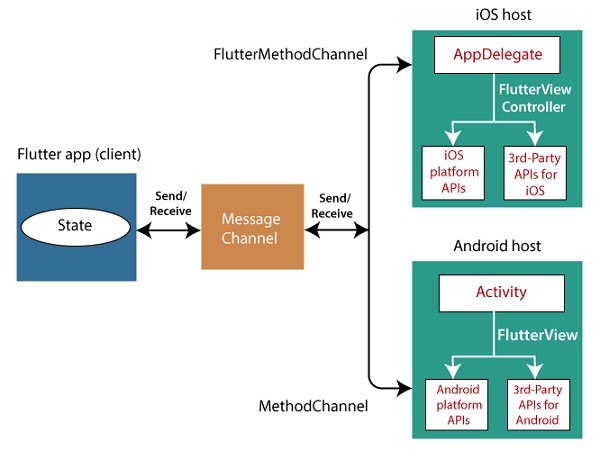
The messaging channel uses a standard messaging codec the StandardMessageCodec class, which efficiently supports binary serialization of JSON,such as Maps, etc. The serialization and deserialization are done automatically between clients and hosts when you send and receive values.
Lets see how dart values are received on Android and iOS platform and vice-versa:
| Dart | Android | iOS |
|---|---|---|
| null | null | nil (NSNull when nested) |
| bool | java.lang.Boolean | NSNumber numberWithBool: |
| int | java.lang.Integer | NSNumber numberWithInt: |
| double | java.lang.Double | NSNumber numberWithDouble: |
| String | java.lang.String | NSString: |
| Uint8List | byte[] | FlutterStandardTypedData typedDataWithBytes: |
| Int32List | int[] | FlutterStandardTypedData typedDataWithInt32: |
| Int64List | long[] | FlutterStandardTypedData typedDataWithInt64: |
| Float64List | double[] | FlutterStandardTypedData typedDataWithFloat64: |
| List | java.util.ArrayList | NSArray |
| Map | java.util.HashMAp | NSDictionary |
Let us demonstrate how to call a platform-specific API to open a browser using the below example.
import 'package:flutter/material.dart';
import 'dart:async';
import 'package:flutter/services.dart';

void main() => runApp(MyApp());
class MyApp extends StatelessWidget {
  @override
  Widget build(BuildContext context) {
    return MaterialApp(
      title: 'Flutter DemoApplication',
      theme: ThemeData(
        primarySwatch: Colors.green,
      ),
      home: MyHomePage(
          title: 'Flutter Platform Specific Page'
      ),
    );
  }
}
class MyHomePage extends StatelessWidget {
  MyHomePage({Key key, this.title}) : super(key: key);
  final String title;
  static const platform = const MethodChannel('flutterplugins.javatpoint.com/browser');
  Future _openBrowser() async {
    try {
      final int result = await platform.invokeMethod('openBrowser', <string, string="">{
        'url': "https://www.javatpoint.com"
      });
    }
    on PlatformException catch (e) {
      // Unable to open the browser
      print(e);
    }
  }
  @override
  Widget build(BuildContext context) {
    return Scaffold(
      appBar: AppBar(
        title: Text(this.title),
      ),
      body: Center(
        child: RaisedButton(
          child: Text('Click Here'),
          onPressed: _openBrowser,
        ),
      ),
    );
  }
}
</string,>
In the above file, we imported a service.dart file, it includes the functionality to invoke platform-specific code. In the MyHomePage widget, we created a message channel and wrote a method _openBrowser to invoke the platform-specific code to open the browser.
 Future _openBrowser() async {
  try {
    final int result = await platform.invokeMethod('openBrowser', <string, string="">{
      'url': "https://www.javatpoint.com"
    });
  }
  on PlatformException catch (e) {
    // Unable to open the browser
 print(e);
  }
}
</string,>
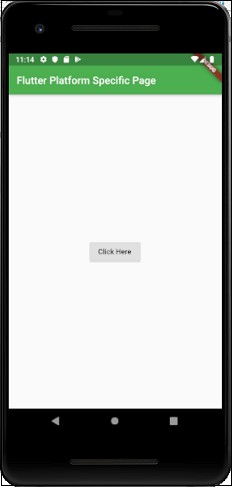
Finally, we have created a button to open the browser.
Now, we need to add the custom platform-specific implementation. For this, navigate to the Android folder of your project and select the Java or Kotlin file and add the following code into the MainActivity file. We have to change the code according to the Java or Kotlin language.
  package com.flutterplugins.flutter_demoapplication

import android.app.Activity
import android.content.Intent
import android.net.Uri
import android.os.Bundle
import io.flutter.app.FlutterActivity
import io.flutter.plugin.common.MethodCall
import io.flutter.plugin.common.MethodChannel
import io.flutter.plugin.common.MethodChannel.MethodCallHandler
import io.flutter.plugin.common.MethodChannel.Result
import io.flutter.plugins.GeneratedPluginRegistrant

 class MainActivity:FlutterActivity() {
    override fun onCreate(savedInstanceState:Bundle?) {
        super.onCreate(savedInstanceState)
        GeneratedPluginRegistrant.registerWith(this)
        MethodChannel(flutterView, CHANNEL).setMethodCallHandler { call, result ->
        val url = call.argument("url")
        if (call.method == "openBrowser") {
            openBrowser(call, result, url)
        } else {
            result.notImplemented()
        }
    }
 }
 private fun openBrowser(call:MethodCall, result:Result, url:String?) {
    val activity = this
    if (activity == null)
    {
        result.error("UNAVAILABLE", "It cannot open the browser without foreground activity", null)
        return
    }
    val intent = Intent(Intent.ACTION_VIEW)
    intent.data = Uri.parse(url)
    activity!!.startActivity(intent)
    result.success(true as Any)
 }

 companion object {
    private val CHANNEL = "flutterplugins.javatpoint.com/browser"
 }
}
In the MainActivity.kt file, we have made a method openBrowser() to open the browser with the url.
  private fun openBrowser(call:MethodCall, result:Result, url:String?) {
    val activity = this
    if (activity == null)
    {
        result.error("UNAVAILABLE", "It cannot open the browser without foreground activity", null)
        return
    }
    val intent = Intent(Intent.ACTION_VIEW)
    intent.data = Uri.parse(url)
    activity!!.startActivity(intent)
    result.success(true as Any)
 }
Output