Flutter Switch
A switch is a two-state UI element and is used to toggle between ON (Checked) or OFF (Unchecked) states it is similar to checkbox. It is a button with a thumb slider used to drag back and forth in the form as ON or OFF. This is similar to electrical switches.
Properties of Switch Widget
| Attributes | Descriptions |
|---|---|
| onChanged | This is called when the user tap on the switch. |
| value | Boolean value true or false is set to show the state of the switch. |
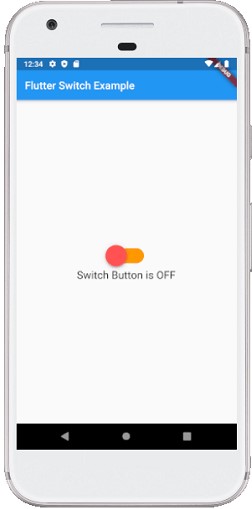
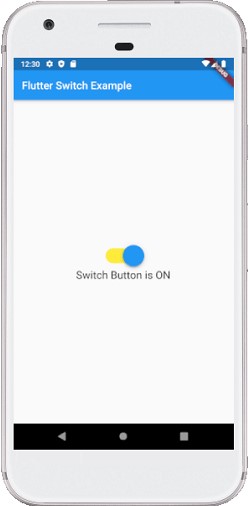
| activeColor | specifies the color of the switch round ball when it’s active or on state. |
| activeTrackColor | specifies the color of the switch track bar when it’s active or on state. |
| inactiveThubmColor | specifies the color of the switch round ball when it’s inactive or in off state |
| inactiveTrackColor | specifies the color of the switch track bar when it’s inactive or in off state |
Example
import 'package:flutter/material.dart';

void main() => runApp(MyApp());

class MyApp extends StatelessWidget {
  @override
  Widget build(BuildContext context) {
    return MaterialApp(
        home: Scaffold(
            appBar: AppBar(
              backgroundColor: Colors.blue,
              title: Text("Flutter Switch Example"),
            ),
            body: Center(
                  child: SwitchScreen()
            ),
        )
    );
  }
}

class SwitchScreen extends StatefulWidget {
  @override
  SwitchClass createState() => new SwitchClass();
}

class SwitchClass extends State {
  bool isSwitched = false;
  var textValue = 'Switch is OFF';

  void toggleSwitch(bool value) {

    if(isSwitched == false)
    {
      setState(() {
        isSwitched = true;
        textValue = 'Switch Button is ON';
      });
      print('Switch Button is ON');
    }
    else
    {
      setState(() {
        isSwitched = false;
        textValue = 'Switch Button is OFF';
      });
      print('Switch Button is OFF');
    }
  }
  @override
  Widget build(BuildContext context) {
    return Column(
        mainAxisAlignment: MainAxisAlignment.center,
        children:[ Transform.scale(
            scale: 2,
            child: Switch(
              onChanged: toggleSwitch,
              value: isSwitched,
              activeColor: Colors.blue,
              activeTrackColor: Colors.yellow,
              inactiveThumbColor: Colors.redAccent,
              inactiveTrackColor: Colors.orange,
            )
          ),
          Text('$textValue', style: TextStyle(fontSize: 20),)
        ]);
  }
}
Output